Jaywan Applepaytoolkit Banner Option2 1080X1080 (1)
Apple Picture 2

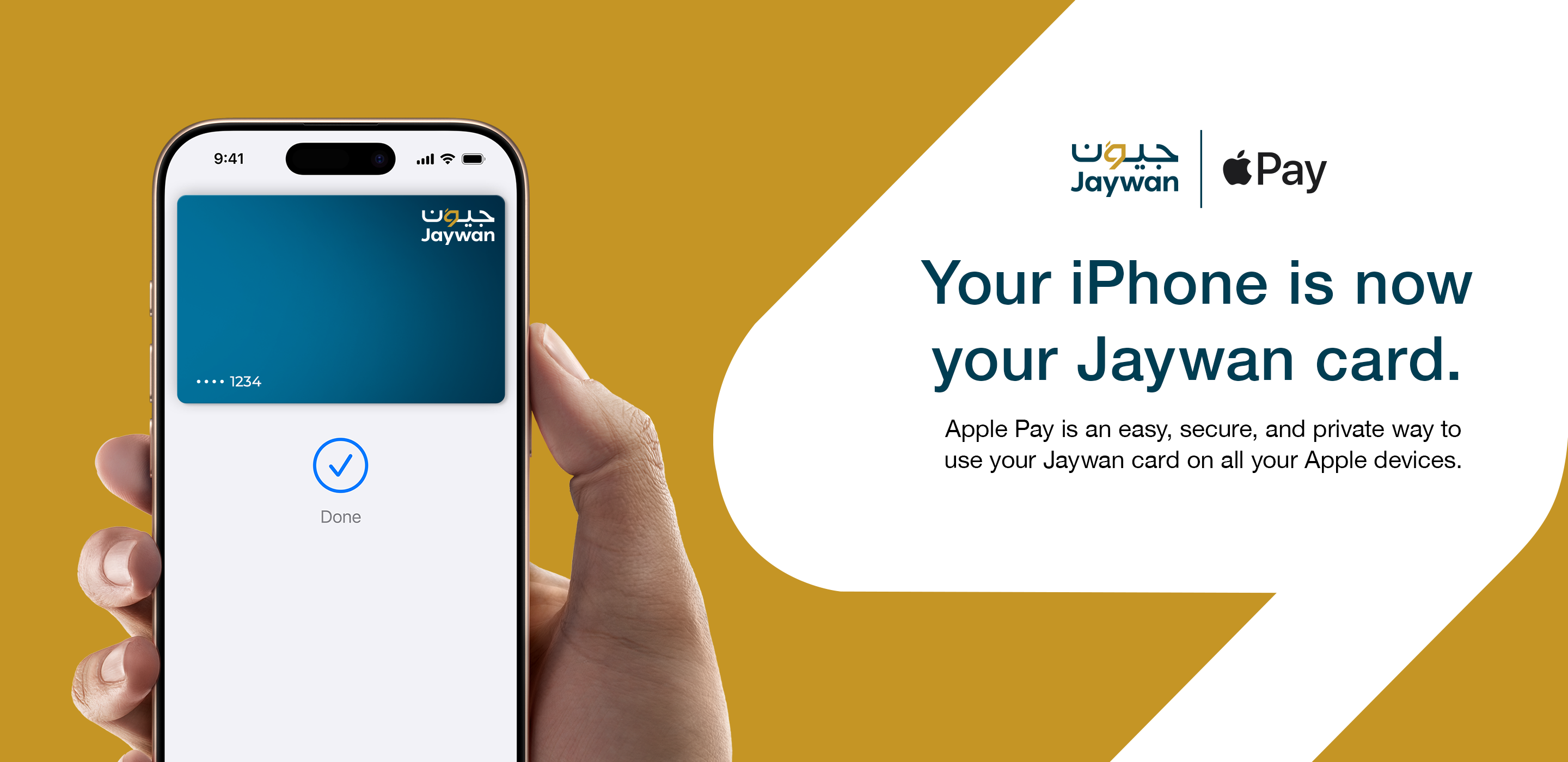
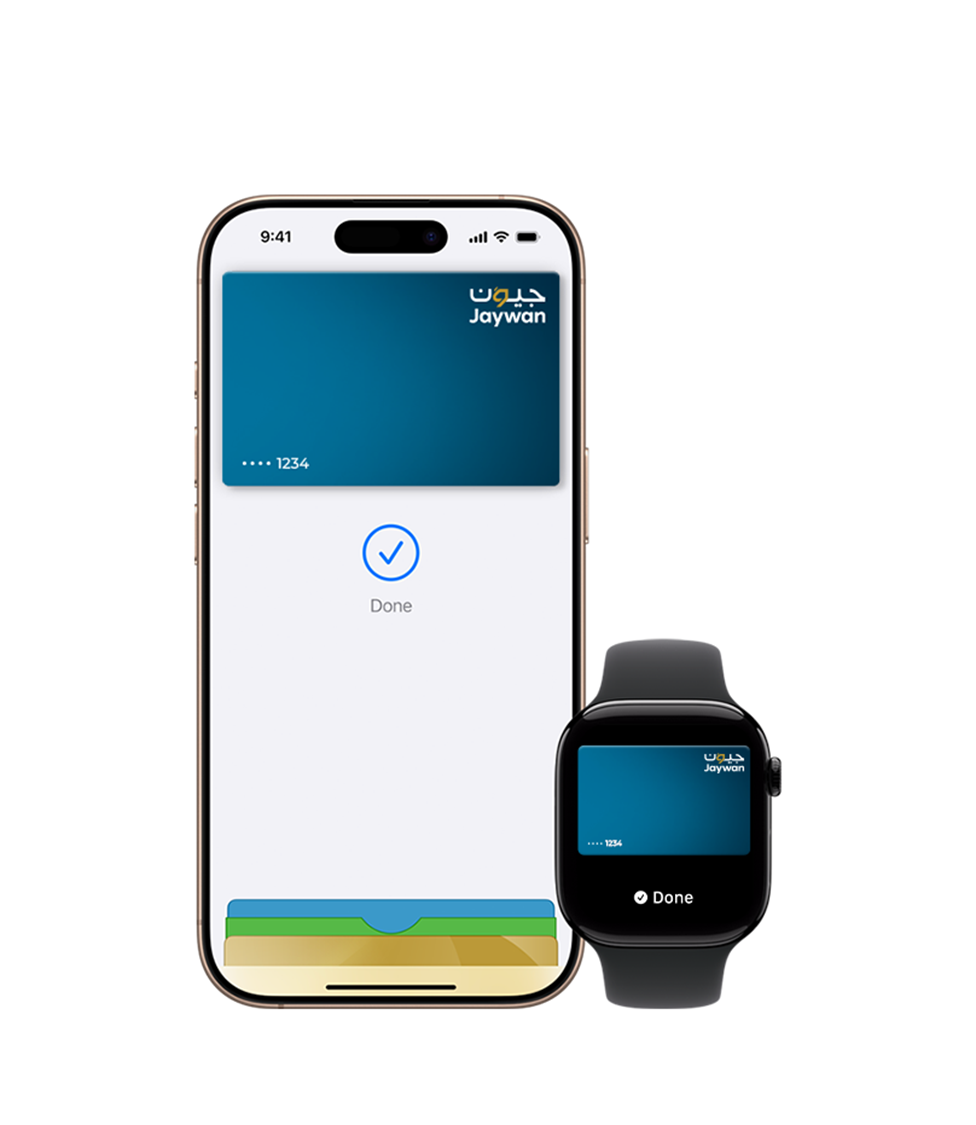
Pay with Jaywan. On all your Apple devices.

No need to carry a physical card. Apple Pay makes it easy to pay with your Jaywan card on your iPhone, Apple Watch, Mac, iPad and Apple Vision Pro.

Simple, secure, and built for everyday payments
Banner1

How to add your Jaywan card

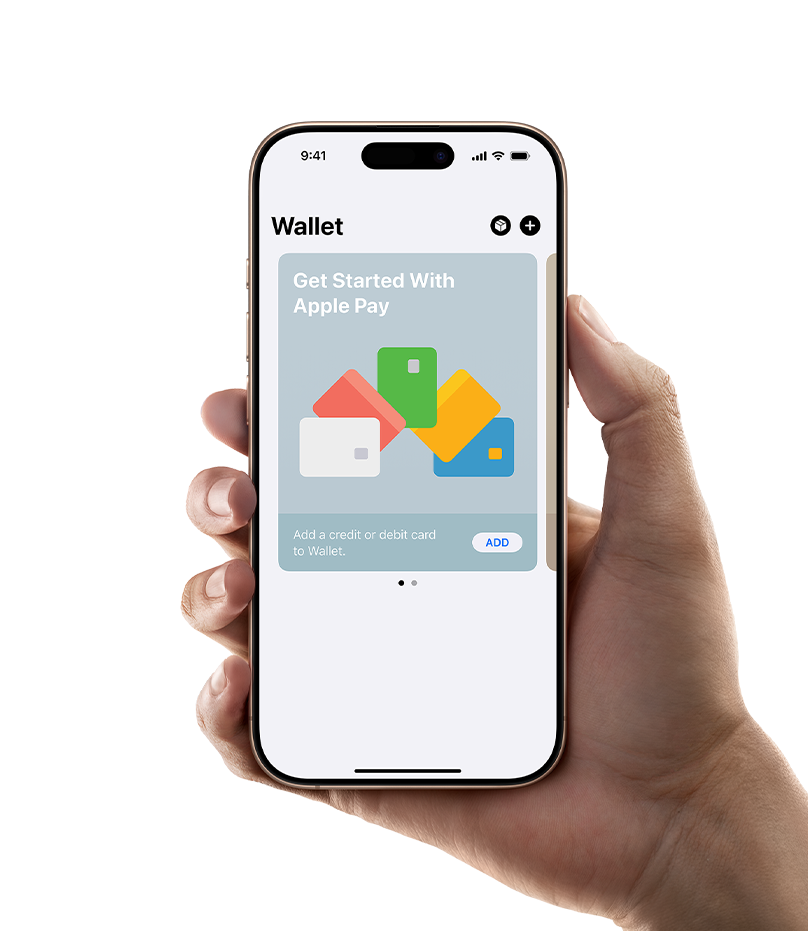
Adding your Jaywan card to Apple Pay takes just a few steps:
  • Open the Wallet app on your iPhone
  • Tap the “+” icon to add a card
  • Enter your card details or scan your card
  • Follow the verification steps from your bank
  • Once added, your Jaywan card is ready to use across all your Apple devices.
  • To set up your Jaywan card through your bank, open your banking app and follow the instructions.
Apple Picture 3

How to pay with your Jaywan card on Apple Pay

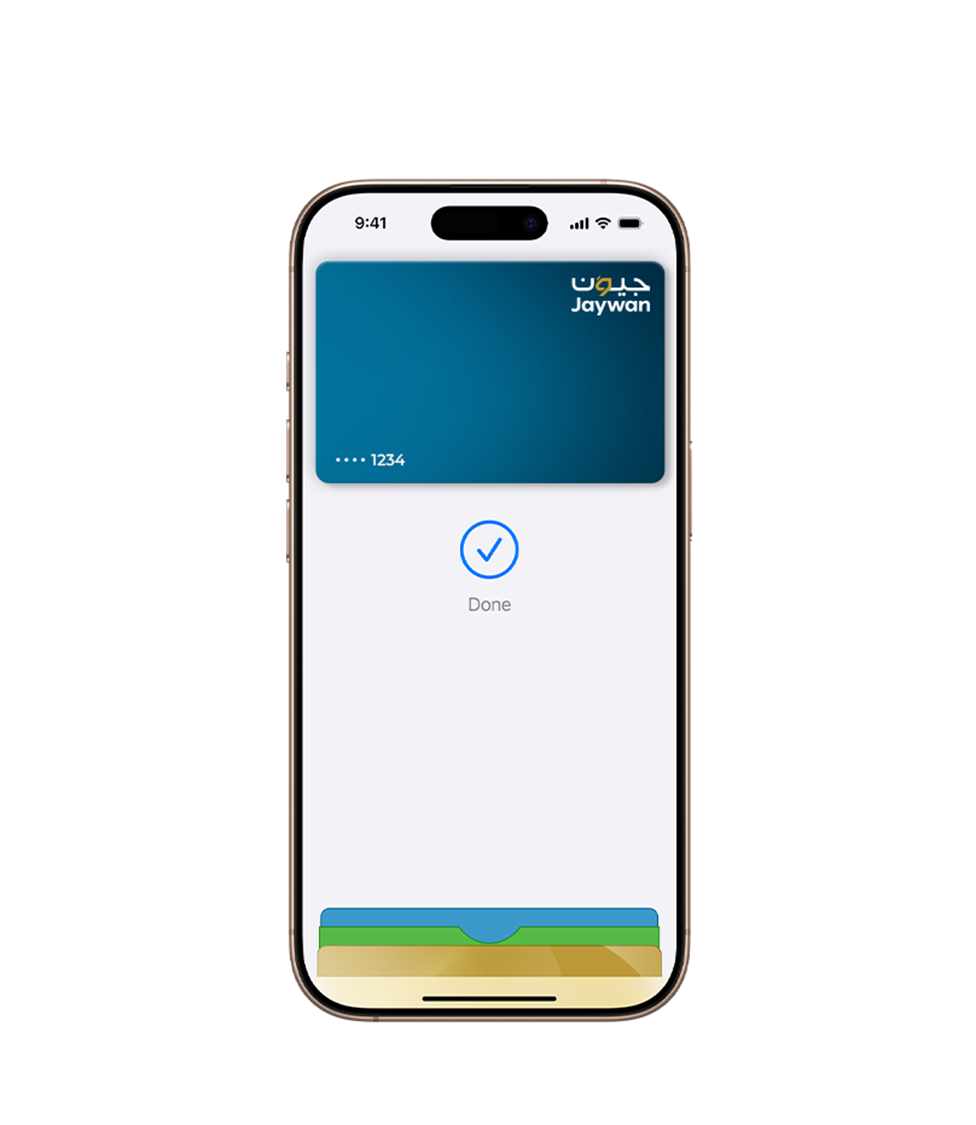
Paying with Apple Pay is quick:

  • In stores: Double-click the side button, authenticate with Face ID or Touch ID, and hold your device near the reader
  • In apps and online: Select Apple Pay at checkout and confirm your payment
  • On Apple Watch: Double-click the side button and hold it near the reader
Why use Jaywan with Apple Pay

Easy

Apple Pay makes it easy to pay with your Jaywan card on your iPhone, Apple Watch, Mac, iPad and Apple Vision Pro.

Secure

Apple Pay uses built-in security features such as Face ID and Touch ID, so only you can authorise payments.

Private

Your actual Jaywan card number is not shared with merchants or stored on Apple servers.